
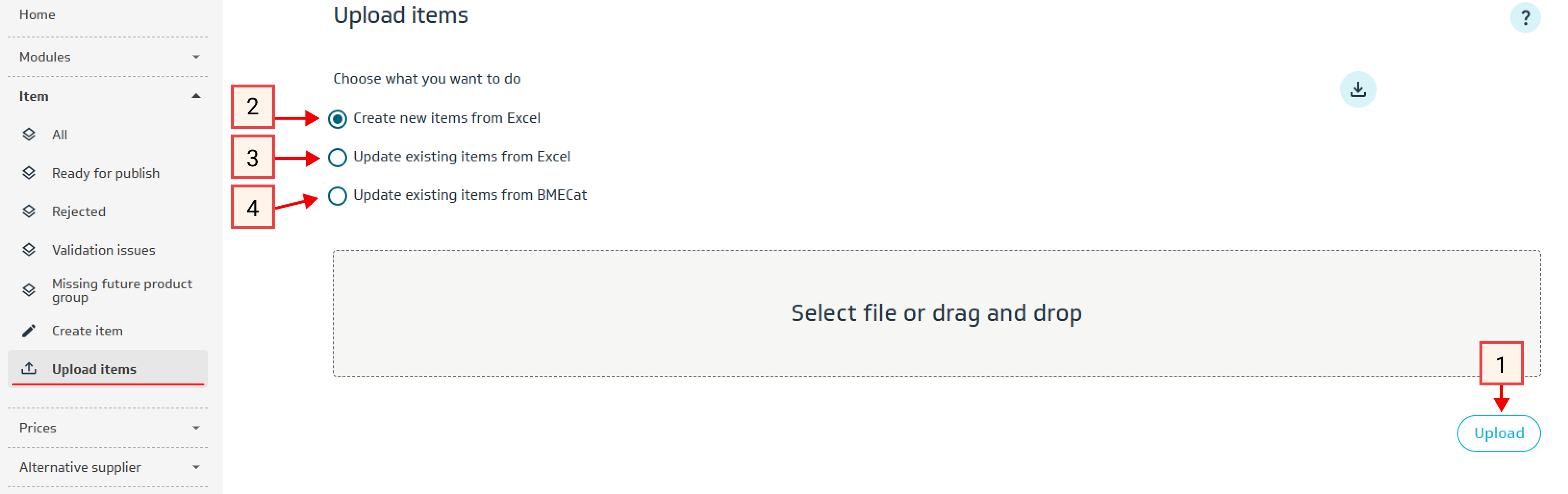
Here you can
-
Download the template for new products
-
Create new products from Excel
-
Update existing products from Excel
-
Update existing products from BMECat
The default selection is Create new products from Excel.
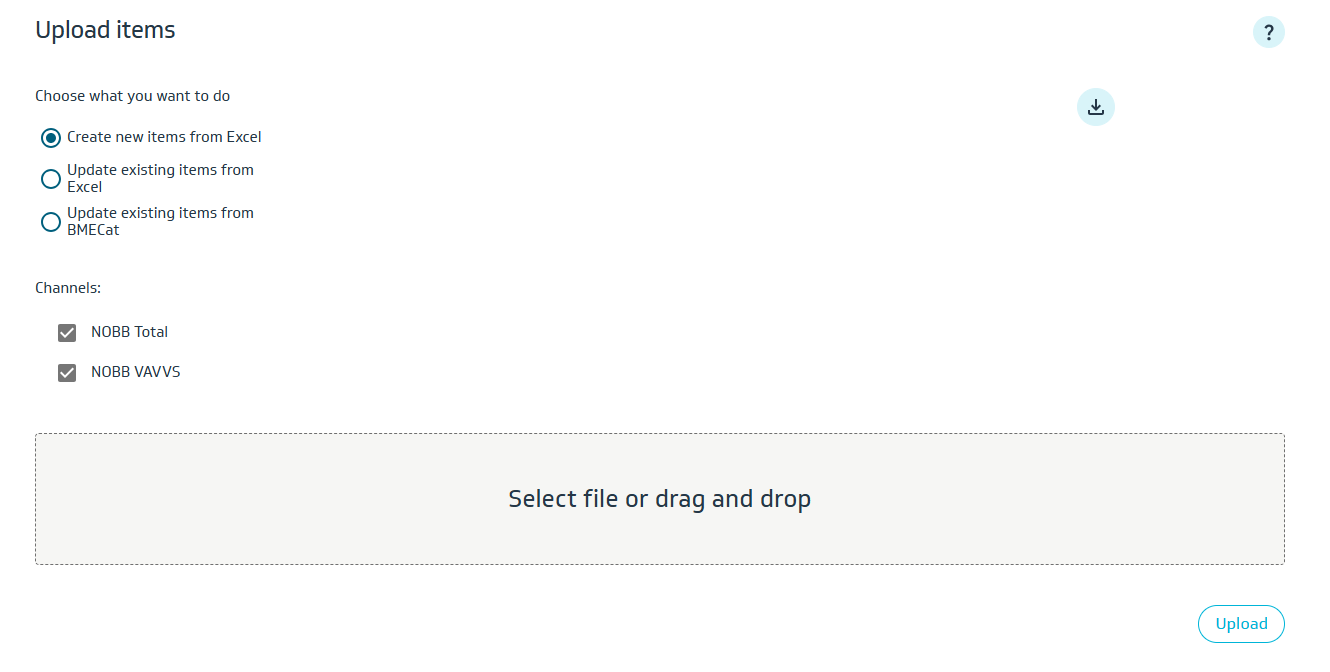
Choice of Channels
If you have access to create items in both NOBB Total and NOBB VAVVS, Channels will appear as a menu option. By default, both channels are selected. Remember to remove one of the checkmarks if you only want to publish the items you upload to one channel.
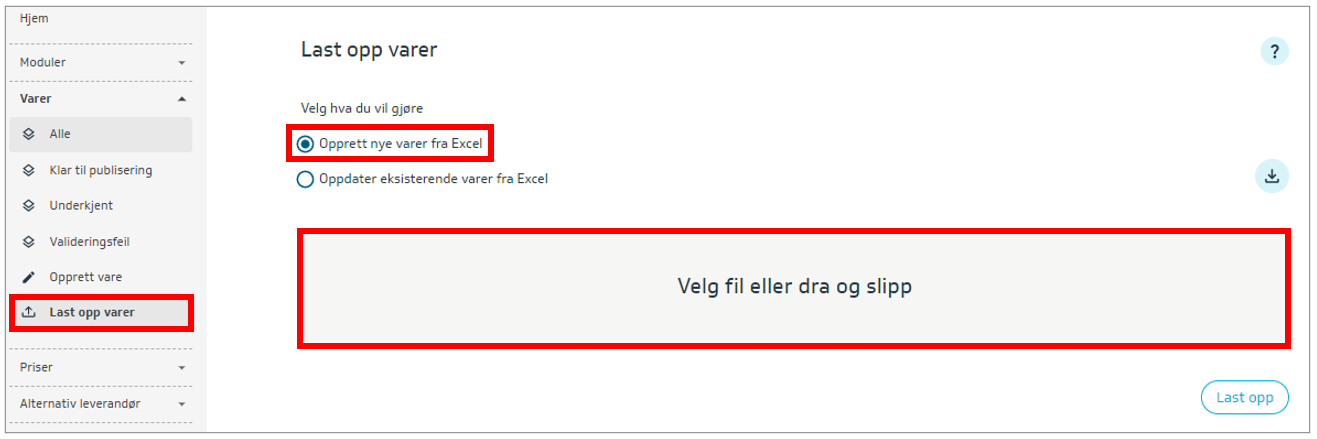
Create New Products from Excel
Download the template directly from NOBB Supplier or click here to download it from the Knowledge Base.
We have one import template for all product types. The product type is selected from the dropdown menu in column I.
Note: Select unit (meter, centimeter, millimeter) for width, length, and height on row 1, column C (this applies to product packaging).

Columns Marked in Yellow Must Be Filled in to Create the Product (in the import file)
-
Supplier's item number
-
Manufacturer's item number
-
Product description 1
-
NOBB module number
-
Price unit
-
Price (applies to standard products, not applicable to VA/VVS suppliers)
-
Product type
-
PK1_Class
-
PK1_Type
-
PK1_Consists of quantity
-
PK1_Consists of unit
-
PK1_Orderable
-
PK1_Stocked
If you have a GTIN with leading zeros, you can change the format of the GTIN column to text.
Remember
There are additional mandatory fields that must be completed before a product can be published/sent for approval:
-
Price (not applicable to special products or products in the VA/VVS channel)
-
Price comparison unit (PSE) and Conversion factor for PSE
-
If the price unit or one of the product's packaging levels matches the PSE for the product group, the conversion factor will be filled in automatically.
-
-
PK1_GTIN
-
PK1_Height
-
PK1_Length
-
PK1_Width
-
PK1_Weight
GTIN, dimensions, and weight are also mandatory for D-pack and T-pack (effective from September 4, 2025).
Learn more about how to calculate the Conversion Factor for PSE: How to Calculate Conversion Factors (PCU)
Steps to Import
-
Save the file on your PC.
-
Import the saved Excel file into NOBB Supplier by selecting the file or using drag-and-drop.
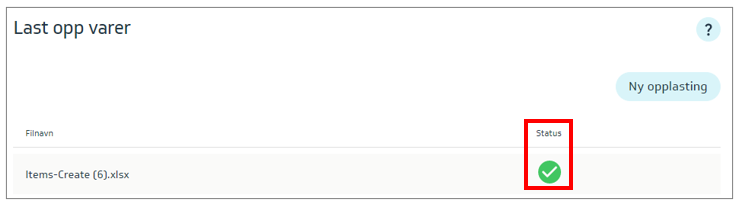
When the file is correctly uploaded (imported), a green checkmark appears in the Status field:
Note: The file with new products will not be imported if there are errors. The import process does not start until the entire file is correct. You must correct the errors in the import file and upload it again.
What to Do After the File Is Uploaded (Imported): What needs to be done after uploading from Excel (import)
Common Error Messages During Product Import
-
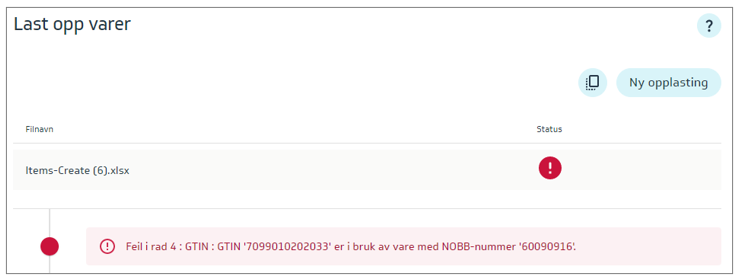
GTIN is already used by another product
-
Module does not exist

-
Primary text contains invalid characters. See the NOBB Guidelines for valid characters

-
Secondary text contains invalid characters. See the NOBB Guidelines for valid characters

-
Product is missing a complete F-PAK

-
A display unit cannot have an F-PAK

-
Package weight is too high in relation to package dimensions
